 PlayCounter
Find Fortnite hours in Epic
- Open the Epic Games Launcher.
- Choose Library and switch to list view.
- Find Fortnite and look at Time Played.
This is the PC launcher’s record. Do not assume it is a complete account total across PC, PlayStation, Xbox, Switch and other devices.
Record your Fortnite sessions with PlayCounter
- Start PlayCounter before launching Fortnite.
- Launch Fortnite through Epic normally.
- Check Now Playing to confirm the game and automatic timer.
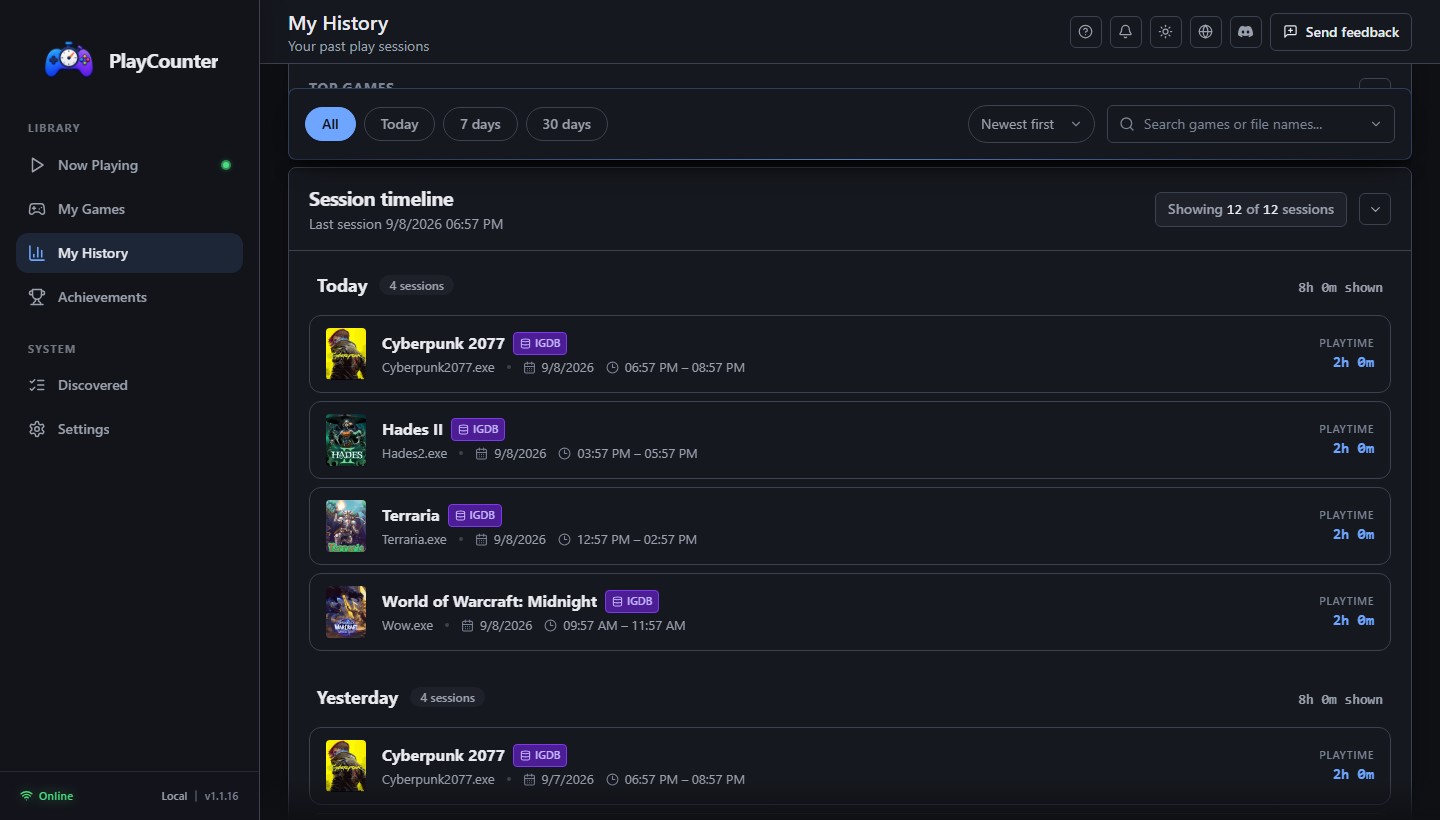
- After closing Fortnite, open My History to see the recorded session.
If a match needs review, choose the game process in Discovered. The Epic launcher can remain open independently of Fortnite.
Runtime is different from time in matches
PlayCounter measures the time the matched Fortnite process is running. That can include the lobby, loading screens and idle time, and it does not split a session by Fortnite mode.
Match statistics describe matches. Multiplying a match count by an assumed average duration will not recover an exact playtime total.
Include earlier time
PlayCounter currently has no Epic history importer. The Epic counter remains the place to check earlier PC hours; you can use a manual adjustment if you want to include a known total locally.
The optional Xbox importer can bring in a reported Xbox value where available. It is not a live console tracker, and overlapping totals are not automatically added together.