 PlayCounter
Automatic sessions
Open a game as usual. PlayCounter starts tracking recognized games and saves the session when they close.
Automatic playtime tracking for Windows
Track your games automatically, wherever you launch them.
Bring available Steam and Xbox hours into one game library.
Around 200 users since our launch in June.
The app
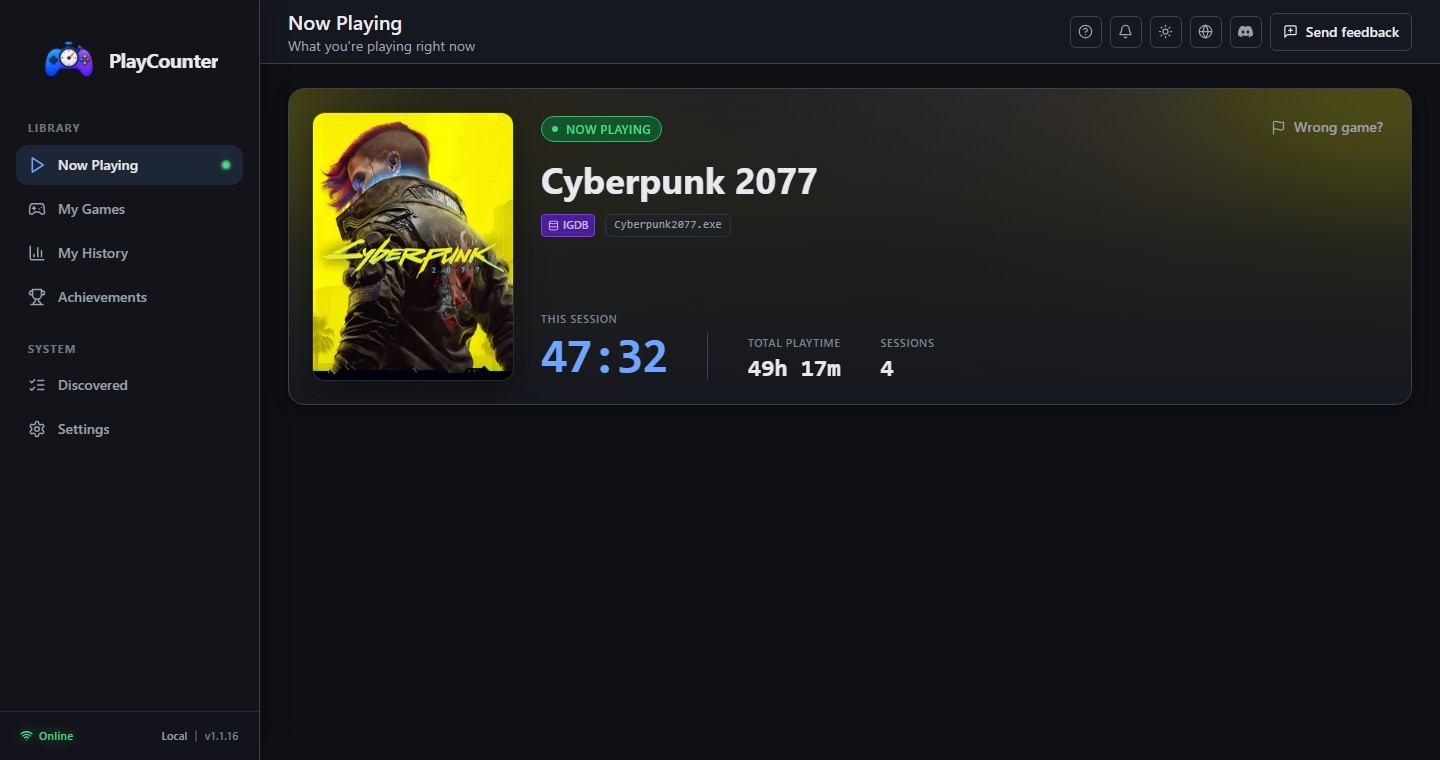
A live timer while you play. A library and session history to come back to.
Open a game as usual. PlayCounter starts tracking recognized games and saves the session when they close.
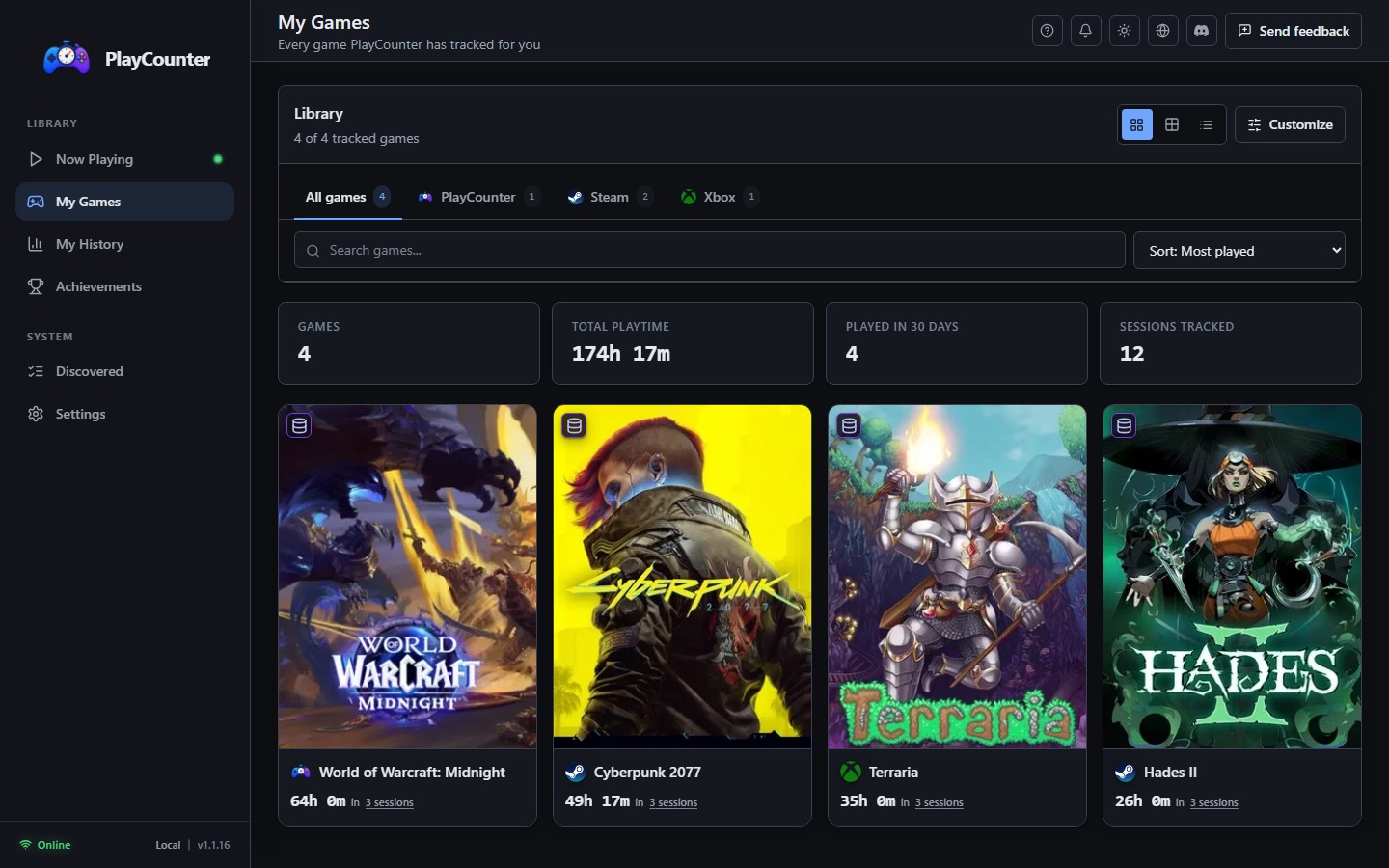
See your games with covers, totals and provider tabs. Search and sort to find what you want.
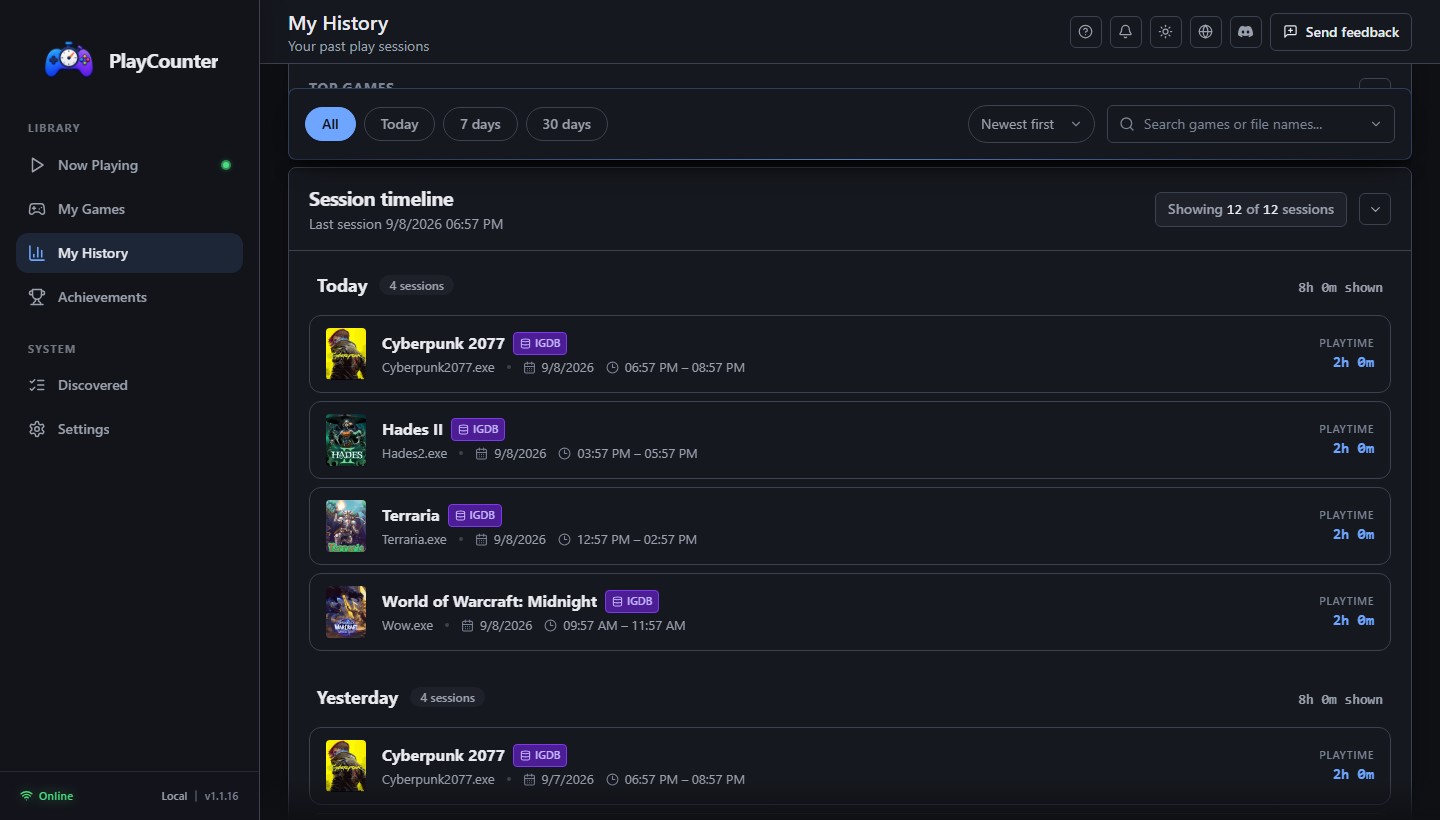
Browse recorded sessions and your playtime statistics. Add a session or adjust a total when needed.
Choose grid or list layouts, adjust card sizes and customize covers. Switch between light and dark themes.
Keep the app in the tray, use optional overlays and shortcuts, or enable game launching from your library.
Review uncertain matches, add local games and exclude processes. Back up your library from Settings.
Your recorded sessions and history stay on your PC. Online features include game matching and installation presence. What the app sends online.
Launcher imports
Automatic tracking works regardless of launcher. Imports add available previous playtime for a more complete library.

Choose a local Steam account, review its games and import the available playtime. No extra sign-in.
How to import Steam playtime
Review games from your Xbox account and import playtime where the game reports it. You choose what to keep.
How to import Xbox playtimeRecognized games from Epic, GOG, EA, Ubisoft, Battle.net, itch.io and standalone installations track as you play. No importer or special launch setup is needed.
Imported hours are totals, not past sessions. PlayCounter uses the higher local or imported total for a matched game. See how totals work.
Emulated games
Dedicated detection for DOSBox and Dolphin gives recognized games their own place in your library.
Recognize games running in supported DOSBox variants, including DOSBox-X and DOSBox Staging.

Track individual games when Dolphin provides a recognizable game identifier or window title.
Some matches need your review. See supported variants, setup and detection details
Get started
Download the free Windows app and open it. No PlayCounter account to create.
Keep PlayCounter running, including in the tray. Start your game the usual way.
Check Now Playing, then find your game and recorded sessions in the library and history.
If a game needs a match, review it in Discovered. How detection works.
Useful guides
Questions
Yes. The Windows app is free, and the desktop source is available under the MIT license. There is no subscription or PlayCounter account to create.
No. Keep PlayCounter running, including in the system tray, and launch games as usual. It records recognized games automatically, regardless of launcher. You can review unknown games in Discovered.
Yes. Steam and Xbox imports bring in available previous playtime. Imported totals do not recreate past sessions. New local sessions are recorded while PlayCounter is running. How totals work.
Dedicated per-game detection currently supports DOSBox and Dolphin. Recognition depends on the game information the emulator exposes; uncertain matches can be reviewed. Emulator setup and limits.
Your recorded sessions and history stay on your PC. Game matching uses online identifier lookups; the app also sends a pseudonymous installation heartbeat. Steam import looks up game IDs, and optional Xbox import temporarily processes account data through the API. Emulator matching can send game identifiers or titles. Read the privacy policy.
The public installer is for Windows. PlayCounter records games running on that PC. Xbox import can include account playtime reported for other devices; it does not add live console tracking.
PlayCounter for Windows
Free to use. Desktop source available on GitHub.